


AI Video Enhancer & Editor
4.4849.00 Reviews
App Specs
- Version
- 1.195.81
- Updated On
- License
- Free
- Downloads
- 10,000,000+
- Developer
- Music Video Editor with Effects & Slideshow
- Categories
- Video Players & Editors
- Platform
- Android
Screenshots
 Analysis by AppCompare
When I first stumbled upon the AI Video Enhancer - Utool, I was a bit skeptical. I mean, how many apps promise to magically enhance your videos and actually deliver? But, being the curious tech enthusiast that I am, I decided to give it a shot. And, spoiler alert: it's pretty impressive!
First Impressions
Downloading and installing the app was a breeze. Right off the bat, I was greeted with a sleek and intuitive interface. No unnecessary clutter or confusing menus, just a straightforward layout that even someone with zero tech skills could navigate.
Where People Can Get Stuck
An uncomplicated first screen helps, but it does not make every editing decision automatic. The app is aimed at improving existing footage, so the first useful question is not simply whether a clip looks old or soft; it is what you want to preserve. A dim indoor video, a moving subject, and a still outdoor shot can react differently to stronger processing. I would start with a short, representative clip rather than sending a whole camera roll through a new workflow.
That small test also helps set expectations. Enhancement can make some details easier to see, but it cannot reliably recreate information that a camera never captured. If a face is heavily blurred by motion, or a bright area has lost all its detail, a sharper-looking result may still not contain the detail you hoped to recover. I treat the result as a cleaner presentation of the recording, not a replacement for the original moment.
There is another practical point: a preview is useful for judging the look, but the finished export is what matters. Before working through several clips, I would check one complete result on the screen where I plan to share or watch it. A small phone preview can make sharpening and color changes seem more flattering than they look on a larger display.
Setup Checks Before Editing
AI Video Enhancer - Utool is a free video editing app from Music Video Editor with Effects & Slideshow. It has a 4.5 average from around 63,000 ratings and has been installed over 10 million times. Those figures suggest that it has found a broad audience, but they do not guarantee that every clip will benefit equally. The app is rated for teens, and the current version is 1.160.64; it requires Android 7.0 or newer.
Before starting a project, I would make sure the original clip is still safely stored and that the phone has room for another copy. Video files can take up meaningful space, especially when you keep both the source and an edited version. This is a sensible precaution for any editor, not a claim about a special Utool storage system. It also makes it easier to compare the two versions without worrying that an edit has replaced the only copy.
Worth Reading Before You Choose

Flipboard Shows What News Apps Must Do Beyond the Feed

Switching to Android Auto Means Rethinking Your Driving Routine

Google Calendar Makes a Crowded Week Easier to Manage

Ludo King Makes the Most of the Minutes Between Plans

Baby Panda World Brings Quick Play to Modern Phones, but Its Game Library Feels Busy

ESPN’s Live Game View Makes Following Close Games Easier
It is worth checking that you have selected the intended source video before applying changes. Similar clips recorded in the same place can be easy to confuse, and choosing the wrong one can make an editing session feel broken when the result simply is not the moment you meant to improve. I also prefer to decide in advance whether the goal is clearer detail, a more pleasing color impression, or a presentable clip for sharing. Trying to fix everything at once can lead to an unnatural look.
Features That Stand Out
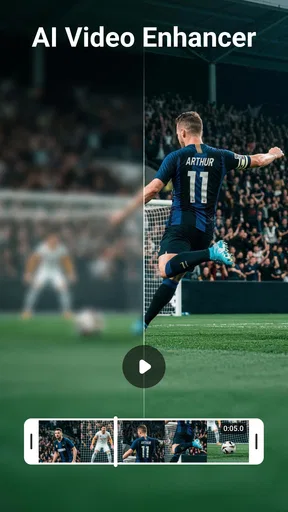
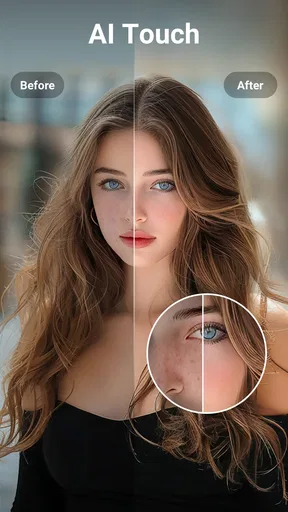
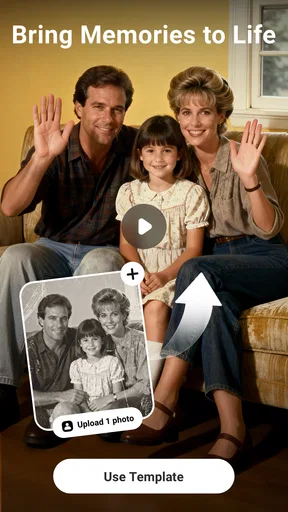
Now, let's get into the nitty-gritty. The app boasts a variety of features that caught my attention. First up, the AI-powered enhancement tool. This is the star of the show. You simply upload your video, and the app works its magic, improving clarity, color, and overall quality. It's like having a professional editor right in your pocket.
Another cool feature is the batch processing capability. Got a bunch of videos you want to enhance? No problem! Just queue them up, and the app handles them all at once. It's a real-time saver, especially if you're dealing with large files.
Making a Batch Workflow Safer
Batch processing is most useful when the clips have a similar purpose and need a similar treatment. For example, after a family gathering, I might want to prepare several short moments for a shared album. A batch can reduce repetitive work, but I would not assume every file needs the same look just because they came from the same evening. A dark clip of a quiet conversation and a brightly lit group shot may call for different judgment, so I would review the results instead of treating a queue as a one-click guarantee.
A reliable workflow is to test one clip, inspect its result, and then decide whether the rest are close enough to process together. Keep the original files until you have checked the edited versions. If something looks overly crisp, oddly colored, or less natural than the source, return to the original and try a more restrained approach rather than repeating the same treatment across the entire batch. This is a useful trade-off: batching saves attention when footage is alike, while individual handling gives more control when it is not.
User Experience
Now, I've used my fair share of video editing apps, and one thing I always look for is user-friendliness. With Utool, I didn't have to spend hours watching tutorial videos or reading online guides. Everything is pretty much self-explanatory. The controls are intuitive, and the response time is quick, even on older devices.
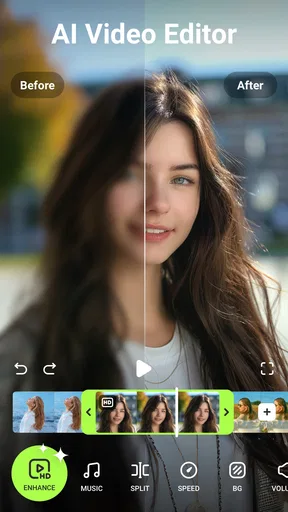
There's also a handy preview feature that lets you see what your enhanced video will look like before committing to the changes. It's a small touch, but it makes a big difference when you're trying to get just the right look.
A Useful Everyday Test
Picture coming home after a child’s school performance or a casual evening with friends and finding that the video on your phone looks softer than it did in the moment. I would choose one short section that represents the problem, preview the enhancement, and compare it with the untouched clip. If faces and important objects read more clearly without losing the natural feel, then I would continue. If the change makes skin or backgrounds look artificial, I would keep the source or use a lighter touch.
This kind of quick decision is where a focused enhancer can be more convenient than a full desktop editing setup. You do not need to build a complicated timeline just to make a phone recording easier to watch. On the other hand, if the clip needs precise trimming, carefully timed captions, multiple audio tracks, or a sequence of shots, a broader video editor is usually the better tool. Utool’s appeal is strongest when the main job is improving footage, not assembling a polished production from many parts.
Performance and Quality
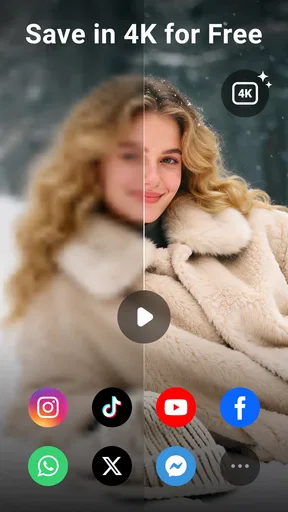
Alright, so how does the app actually perform? In one word: phenomenally. I tested it with various videos, from low-light party clips to grainy old family recordings, and the results were consistently impressive. The app does a fantastic job of reducing noise and sharpening details.
Colors pop more, and the overall image is crisper. It’s perfect for anyone looking to give their videos a professional touch without spending hours tweaking settings.
I would still judge quality clip by clip. Noise reduction and sharpening can be helpful, but pushing either too far may make fine texture look less natural. A low-light scene can contain both distracting grain and details that give it character; removing too much can leave a smooth, processed appearance. My practical tip is to compare the preview with the source at the same moment and look at faces, edges, and moving objects rather than judging only the overall brightness.
When a Result Looks Wrong
If an edit seems stalled or the output is not what you expected, I would first check the basics: confirm that the correct clip is selected, allow the current operation to finish, and try a shorter sample. If the phone is handling several large videos at once, closing other demanding tasks and working through a smaller batch can make the process easier to manage. These are general troubleshooting steps, not a promise that every delay has the same cause.
If the preview looks acceptable but a saved result seems disappointing, compare the same moment in both files and check it in another player. A display’s brightness, color settings, or scaling can change how footage appears, so the difference may not come from the edit alone. If the original already looks poor in multiple players, the limitation may be in the recording itself. Keeping that original gives you a safe point to return to while you decide whether another treatment is worthwhile.
Choosing the Right Tool for the Job
Compared with a traditional editor, Utool is the more focused choice when the immediate goal is to improve an existing video without spending time on a detailed timeline. A general-purpose editor is a better fit when you need exact cuts, a carefully arranged story, or more control over how several elements fit together. Compared with leaving a clip untouched, enhancement can offer a quick way to make some footage more presentable, but it is not automatically an improvement: natural texture and faithful color may matter more than extra sharpness.
I would recommend trying it if you regularly revisit phone videos, want a straightforward enhancement step, or need to prepare a group of similar clips without editing each from scratch. I would skip it if you mainly want advanced production controls, depend on exact manual adjustments, or expect damaged footage to become indistinguishable from a clean recording. The best choice depends on whether convenience or detailed control matters more for the task in front of you.
Cost and Practical Expectations
The app is free to download, with in-app purchases ranging from $0.99 to $59.99 per item. I would explore the basic workflow and check how a real clip looks before deciding whether any paid option is useful to me. The range makes it especially sensible to avoid assuming that every tool or export choice is included at no cost. If you are considering a purchase, read the in-app details carefully and decide based on a task you actually need to do, rather than paying in anticipation of a vague improvement.
That is also why I would not treat a free starting point as proof that the whole editing experience will remain free. For occasional personal videos, the no-cost entry may be enough to see whether the app suits your habits. For regular use, it is worth weighing the price shown in the app against how often you will enhance footage and whether a different editor already handles the rest of your workflow.
Is It Worth the Download?
So, here's the million-dollar question: is the app worth your time? In my opinion, absolutely. Whether you're a budding filmmaker, a social media influencer, or just someone who loves capturing life's moments, this app is a game-changer.
It's user-friendly, efficient, and delivers on its promise to enhance your videos. Plus, it's available for both Android and iOS, making it accessible to a wide audience.
If you're still on the fence, I’d suggest giving the free trial a go. It’s a risk-free way to see if it fits your needs. Trust me, once you see the results, you'll be hooked!
My Practical Verdict
For me, the strongest reason to try it is the simple path from selecting a clip to judging an enhanced version. That makes it approachable for someone who does not want to learn a full editing suite just to improve a phone video. Its large audience and 4.5 average are reassuring signs of reach, but my recommendation still comes with a condition: decide from your own footage, not from the promise of a universally better image.
My final advice is to preserve the original, test one representative clip, and look closely at the result before processing a whole collection. If the improvement feels natural and the task is mainly image enhancement, Utool is a convenient fit. If you need detailed creative control or the source recording has already lost the information you want back, another editor—or simply keeping the original as it is—may be the wiser choice.
Pros
- Enhances video quality seamlessly.
- User-friendly interface for all levels.
- Supports multiple video formats.
- Fast processing with minimal lag.
- Regular updates with new features.
Cons
- Requires high-end device for best performance.
- Limited free version features.
- Occasional bugs in batch processing.
- No offline mode available.
- Subscription can be pricey.
FAQs for AI Video Enhancer & Editor
What is AI Video Enhancer - Utool, and how does it work?
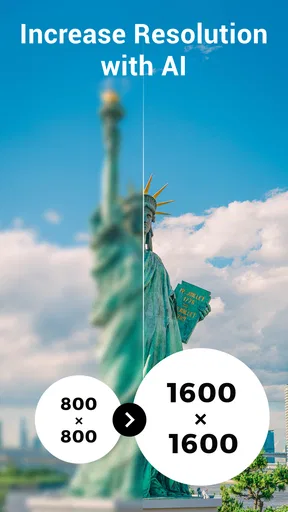
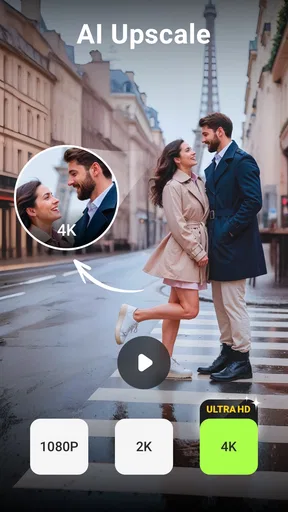
AI Video Enhancer - Utool is an application designed to improve the quality of your videos using artificial intelligence. It employs advanced algorithms to enhance resolution, adjust lighting, and reduce noise, offering a polished and professional finish to your videos. The app is user-friendly, allowing both beginners and professionals to enhance videos with ease.
Is AI Video Enhancer - Utool free to use?
AI Video Enhancer - Utool offers a free version with basic features, allowing users to test the app's capabilities. However, advanced features and higher resolution enhancements may require a subscription or one-time purchase. This tiered pricing ensures users only pay for the features they need, making it accessible for different user needs.
What devices and operating systems support AI Video Enhancer - Utool?
AI Video Enhancer - Utool is available for both Android and iOS devices. It supports a wide range of smartphones and tablets, ensuring a smooth user experience. Ensure your device meets the minimum system requirements detailed on the download page for optimal performance and to access all features effectively.
How does AI Video Enhancer - Utool handle privacy and data security?
AI Video Enhancer - Utool prioritizes user privacy and data security. The app processes video enhancements locally on your device, minimizing data transfer to external servers. Additionally, it complies with standard data protection regulations, ensuring any data that is required for app functionality is handled securely and responsibly.
Can AI Video Enhancer - Utool handle all video formats?
AI Video Enhancer - Utool supports a wide range of popular video formats, including MP4, AVI, and MOV. This versatility ensures that users can enhance videos without the need to convert them first. However, it's recommended to check the app's specifications for any format limitations to ensure compatibility with your video files.


